It's 4:58. Your 4:00 ran long, your 5:00 is already sitting in the waiting room, and somewhere in your notebook is a line that says "send deck to M. by Thurs??" You'll decode it later. Probably at 9:40 p.m., on the couch, with your laptop balanced on a pillow.
Granola AI is the tool our team uses to stop working that way. It's an AI notepad for people with back-to-back meetings: it transcribes your meeting from your computer's audio, combines that transcript with whatever notes you jot down, and the moment the call ends, you walk out with the action items already pulled out.
This Granola 101 covers what it is, how to set it up (about five minutes), the features worth knowing, what it costs, whether it's safe for sensitive conversations, and the exact habits five of us at The Assist use every week. If you read our OG Tuesday piece on the 5 questions to ask before you trust an AI notepad, this is the hands-on follow-up.
Your meeting cheat sheet.
- What it is: Granola is an AI notepad that transcribes your meetings from your device's audio and turns your rough notes into organized notes with action items.
- Where it works: Zoom, Google Meet, Microsoft Teams, phone calls, and in-person meetings, on Mac, Windows, iPhone, and Android.
- Setup: download it, sign in with Google or Microsoft, connect your calendar, and allow audio access.
- Pricing: Basic is free (your last 30 days of notes), Business is $14 per user per month, and Enterprise starts at $35 per user per month. Readers get a free month with the code THEASSIST.
- Security: Granola doesn't keep your audio recordings, encrypts your data at rest and in transit, and is SOC 2 Type II certified.
What Is Granola AI?
Granola is an AI notepad built for people with back-to-back meetings. It transcribes your conversation from your computer's audio while you take as many or as few notes as you like. When the meeting ends, it combines the transcript, your notes, and the calendar event into organized notes, with action items and next steps pulled out.
Three things make it feel different once you're using it:
- Your notes stay yours. Anything you typed shows up in black inside the finished notes, so you can see your own words at a glance. Click the magnifying glass beside any line to see whether it came from the transcript or from you.
- It works where you meet. Granola runs on Mac, Windows, iPhone, and Android and works with Zoom, Google Meet, Teams, phone calls, and in-person conversations.
- It remembers. Granola Chat lets you ask questions about one meeting or all of them, weeks later.
New this fall: Granola, the AI notepad for people with back-to-back meetings, now supports 32 languages. Turn it on in Settings > Languages > Multi-language, and Granola detects which language you're speaking automatically.
How Does Granola Work Before, During, and After a Meeting?
Granola covers the three parts of a meeting that eat your day: the prep, the note-taking, and the follow-up. Here's what that looks like on a normal Tuesday.
Before: walk in prepared
Granola syncs with your Google or Microsoft calendar and spots your upcoming meetings. Its Briefs feature gives you a short prep summary when you open the meeting note, including who's attending and what you discussed last time. No more scrolling old email threads two minutes before you join.
During: stay in the conversation
Granola transcribes the meeting in the background using your computer's audio. Jot a few words if something matters to you ("ask about Q1 budget"), or type nothing and focus on the person in front of you.
Right after: send it before your next call
When the meeting ends, your notes are organized and the action items are pulled out, ready to share. You can send them by link, open an email draft in Gmail or Outlook, or post them to Slack. Notes stay private until you choose to share them.
Weeks later: ask what you agreed to
Search every past meeting, or ask Granola something like "Did I commit to a deadline?" and get the answer without digging through five sets of notes.
Get a free month with the code THEASSIST
How Do You Set Up Granola? (Step by Step)
Setting up Granola takes about five minutes, and most of that is clicking "Allow." Here's the official setup flow:
- Download Granola from granola.ai. On a Mac you'll need macOS 14 or later. There's also a Windows app, plus iPhone and Android apps for in-person meetings and calls away from your desk.
- Install it. On a Mac, drag the Granola icon into your Applications folder. On Windows, run the installer.
- Sign in with Google or Microsoft. Use the work account that holds your meeting calendar. (Microsoft calendars need to be on cloud-based Microsoft 365. On-premises Exchange isn't supported.)
- Connect your calendar. Granola reads the basics of each event: title, date, time, and attendees.
- Allow microphone and system audio access when your Mac asks. On Windows, these permissions are granted automatically.
- Watch the two-minute demo meeting that appears the first time you sign in. It's the fastest way to see how notes come together.
- Add your free month. Go to Settings > Billing, click Use coupon, and enter THEASSIST.
Three settings worth two extra minutes
- Teach it your words. Go to Settings > Preferences > Language and add names, acronyms, and product terms under Personal jargon (up to 30). Workspace admins can add up to 50 shared terms for the whole team.
- Turn on multi-language if you switch languages with clients or colleagues.
- Decide on training. On the Basic and Business plans, Granola may use anonymized data to improve its own models. You can opt out under Settings > Preferences > Data & sharing.
One habit to add on day one: let people know you're using an AI notepad. Granola recommends telling participants on video calls, phone calls, and in person, and it has built-in ways to notify attendees. Recording rules vary by location, so check with your legal or IT team if you're unsure.
What Are Granola's Main Features?
Granola's core features are AI-enhanced notes, Granola Chat, Recipes, Briefs, templates, and easy sharing. Here's what each one does and where it saves you time.
| Feature | What it does | How it helps you |
|---|---|---|
| Enhanced notes | Merges your rough notes, the transcript, and calendar details into organized notes | You stay in the conversation instead of typing through it |
| Templates | Lets you pick or build a structure for 1:1s, sales calls, interviews, and more | Every meeting type comes out in the format you actually use |
| Granola Chat | Answers questions about one meeting, a folder, or all your notes | Find the detail you can't place ("Which call covered pricing?") |
| Recipes | Saved, reusable prompts inside Chat, like a follow-up email or weekly recap | Your repeat asks become one click |
| Briefs | Gives you a short prep summary when you open a meeting note | You walk in knowing who's there and what was said last time |
| Sharing + integrations | Share by link, email draft, or Slack; Business adds Notion, HubSpot, Attio, Affinity, and Zapier | The recap is out before your next call starts |
| Folders | Groups notes by client, project, or team, with chat across the folder | Your team builds a shared memory of every conversation |
| Multi-language | Transcribes in 32 languages and detects them automatically | Works for global teams and bilingual meetings |
| Mobile apps | iPhone, Android, and Apple Watch apps | Coffee chats, site visits, and conferences get notes too |
The feature our team uses most: Granola Chat
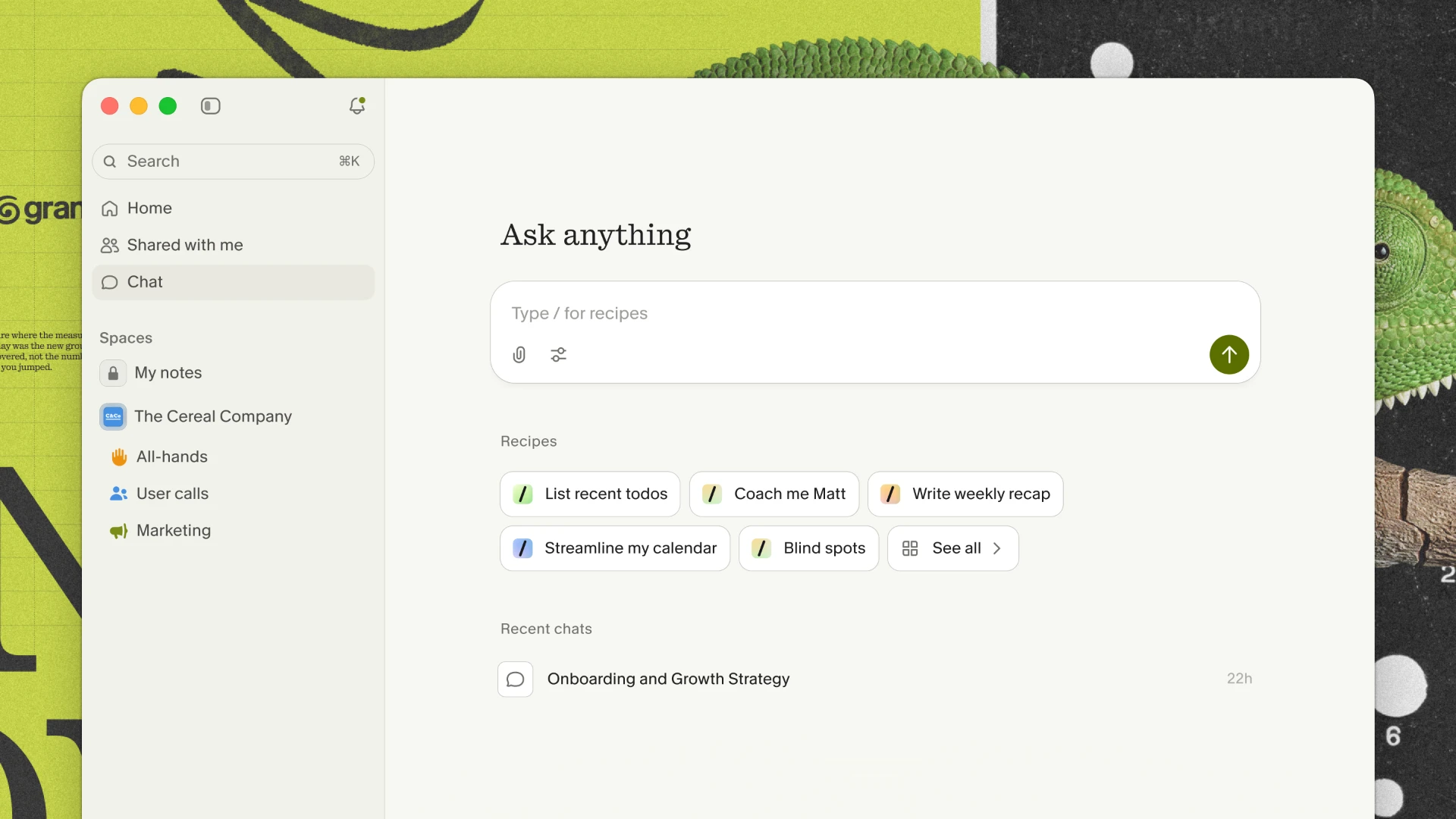
Granola Chat is what turns a pile of meeting notes into something you can actually use. Ask it about a single meeting before, during, or after, or open it from the homepage to ask across everything. A few prompts worth stealing:
- "What action items came out of this meeting, and who owns each one?"
- "Summarize my meetings this week and list the three priorities they point to."
- "Did I mention pricing or promise any deliverables?"
- "Rewrite these notes as a follow-up email to the client."
One thing to know: Chat only knows your meetings and the files you add to folders. It can't see your inbox or your to-do app.
How Does The Assist Team Use Granola?
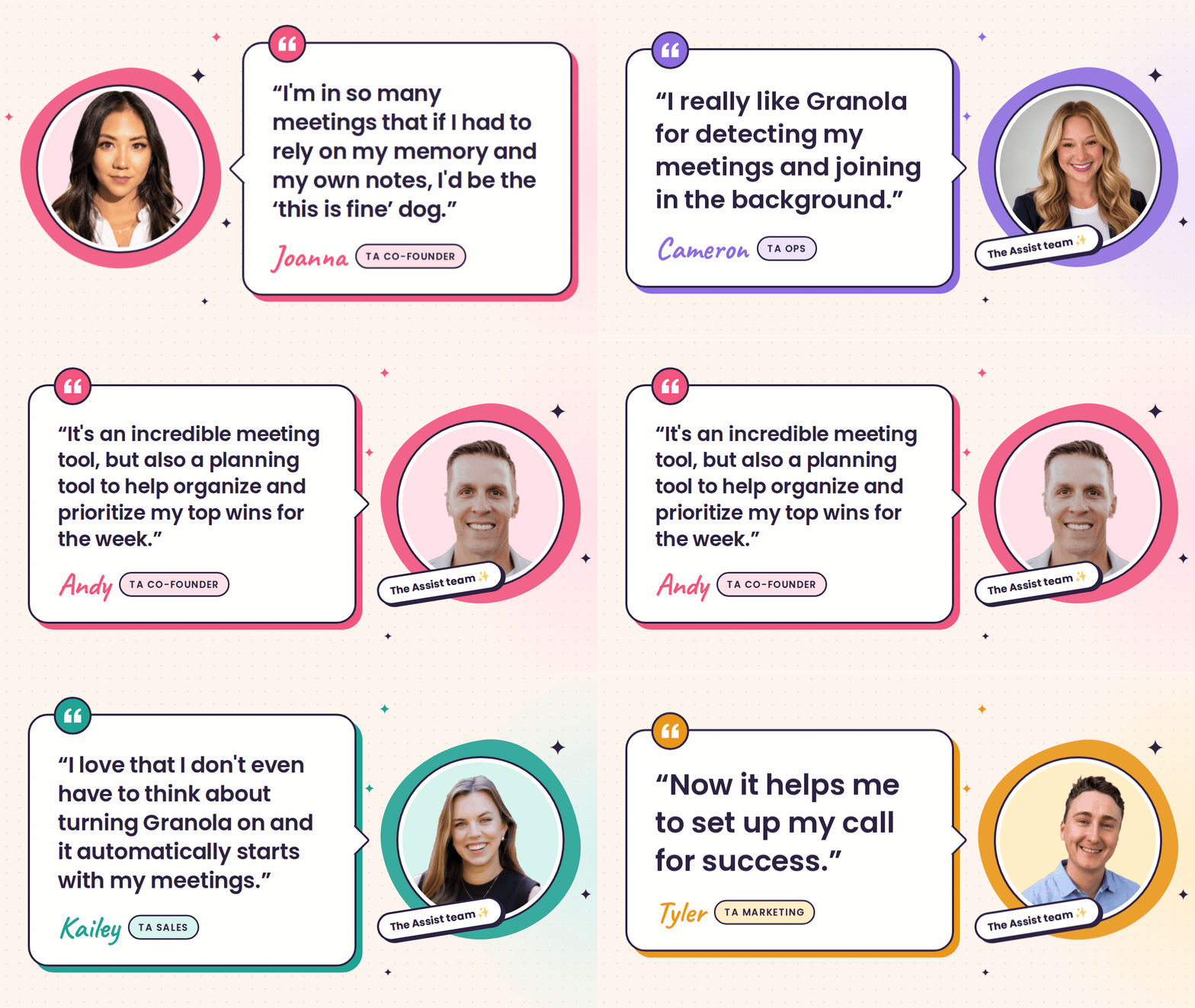
Our team used to spend meetings typing instead of listening. Now we all run Granola, and our follow-through got better. Here's what each of us does with it, so you can borrow whichever habit fits your week.
Cameron (Ops): send it before the next call
Cameron keeps Granola running in the background, so she can share the summary and action items as soon as the meeting ends. The recap goes out while everyone still remembers the conversation.
Borrow it: share the notes before you close the meeting tab.
Andy (Co-Founder): plan the week from it
Andy uses Granola Chat to summarize his meetings for the week, turning what was actually discussed into next week's top priorities. His weekly plan starts from what people actually said in the room.
Borrow it: at the end of your week, open Chat from the homepage and ask, "Summarize my meetings this week and list my top three priorities for next week."
Kailey (Sales): check what she promised
Kailey asks Granola Chat for a list of deliverables and due dates, then sets reminders. Before every follow-up, she asks Granola, "Did I mention pricing or promise any deliverables?" That one question keeps every follow-up consistent with the last call.
Borrow it: save that question as a Recipe so it's one click before every client call.
Tyler (Marketing): set up the call in ten seconds
Tyler opens each call with a line about why he's there and what he wants from it. That gives Granola context for the notes and confirms it's running. He also added the names and shorthand it kept misspelling to his Personal jargon list, which took about two seconds.
Borrow it: say your goal for the meeting out loud in the first minute, so your notes start with the point.
Joanna (Co-Founder): take it to conferences
At in-person events, Joanna keeps Granola running for the whole session and focuses on the speakers. Afterward, she turns the transcript into takeaways she can share with the team.
Borrow it: at your next conference, ask Chat for "the five most useful takeaways for my team" before you leave the venue.
Get a free month with the code THEASSIST
How Much Does Granola Cost? Is It Free?
Yes, Granola has a free plan. Basic costs $0 and includes unlimited meeting notes, but only your last 30 days of notes are visible. Paid plans start at $14 per user per month. Here's the breakdown from Granola's pricing page:
| Plan | Price | Best for | What you get |
|---|---|---|---|
| Basic | Free | Trying it out | Unlimited notes, 30 days of visible history, AI chat, Slack integration |
| Business | $14 per user per month | Individuals and small teams | Unlimited history, AI chat with model selection, Notion, HubSpot, Attio, Affinity, and Zapier integrations, API access, centralized billing |
| Enterprise | From $35 per user per month | Larger companies | Everything in Business, plus SSO, HIPAA-compliant workspaces, Salesforce, admin policies, usage analytics, dedicated support |
A few details worth knowing, per Granola's billing help page:
- Older notes don't disappear on Basic. They're stored and become visible again when you upgrade.
- You pay per active seat. Sharing a note with someone doesn't add them to your bill.
- Discounts exist. Startups and students can get 12 months of Business free, and registered nonprofits get 50% off Business.
- Assist readers get a free month with the code THEASSIST (Settings > Billing > Use coupon).
Which plan should you pick? Start on Basic for a week of real meetings. If you find yourself asking Chat about calls from last quarter, or you want notes flowing into Notion or HubSpot, upgrade to Business. Enterprise is the call when your company needs SSO, admin controls, or HIPAA compliance.
👉 Download Granola and try it in your next meeting. Free month with the code THEASSIST.
Get a free month with the code THEASSIST
Is Granola Safe for Confidential Meetings?
Granola doesn't keep your audio, encrypts your data, and is independently audited, which covers what most IT teams ask about first. Client names, salary numbers, a deal that isn't public yet: a lot gets said in meetings, so here are Granola's answers to the five questions worth asking, from its security and privacy FAQ.
- Is the audio stored? No. Granola transcribes from your computer's audio as the call happens and doesn't keep the recording.
- Is my data encrypted? Yes, at rest and in transit.
- Can AI companies train on it? OpenAI and Anthropic are never allowed to train on your data. Granola may use anonymized data to improve its own models on the Basic and Business plans, and you can turn that off in Settings > Preferences > Data & sharing. Enterprise admins can opt out for the whole company.
- Is it independently audited? Yes. Granola holds SOC 2 Type II certification, which means an independent auditor reviewed its security practices over a period of months.
- What about health information? Granola is HIPAA compliant for Enterprise customers and can sign a Business Associate Agreement (BAA), which currently covers the desktop apps. The Basic and Business plans shouldn't be used for patient health information.
Two more facts for your IT team: Granola complies with GDPR and UK GDPR, and all data is stored on AWS servers in the United States (regional data residency isn't offered yet).
This section is for general information, not legal or compliance advice. If you work with regulated data, check with your IT or legal team before rolling out any AI notetaker.
Who Is Granola Best For (and Where Does It Fall Short)?
Granola is best for anyone whose calendar is mostly meetings and whose follow-up keeps spilling into the evening.
- If you're an individual contributor juggling client calls or managing up, it gives you a record of exactly what you agreed to, so nothing slips between the call and the email.
- If you're a manager, your 1:1s, team syncs, and skip-levels each get clean notes and action items without you playing note-taker.
- If you're a director or executive with back-to-back days, Briefs and Chat help you walk into each meeting prepared and plan the week from what was actually said.
A few honest limits to know before you start:
- The free plan only shows 30 days of notes. Fine for a trial, tight for anyone who needs last quarter's details.
- Mac users need macOS 14 or later, and Microsoft calendars must be on cloud Microsoft 365.
- Transcription isn't perfect. Personal jargon helps with names and acronyms, but similar-sounding words can still slip through, so skim before you share anything important.
- Chat only knows your meetings. It can't see your email or task manager.
- You still need to tell people. Consent is your job, and Granola's notification tools make it easy.
Final Thoughts
The hardest part of a meeting usually happens after it ends: remembering what you promised, writing it up, and getting it to the right people before the next call starts. Granola takes that part off your plate. Set it up once, add your jargon, and try one habit from our team this week. Walk out of your next meeting with the action items already pulled out.
👉 Download Granola and try it in your next meeting. Free month with the code THEASSIST.
People Also Ask These Questions About Granola
Q: What is Granola AI? A: Granola is an AI notepad for people with back-to-back meetings. It transcribes meetings from your device's audio, combines the transcript with your own notes, and creates organized notes with action items when the meeting ends.
Q: Is Granola free? A: Yes. Granola's Basic plan is free and includes unlimited meeting notes, with your last 30 days of notes visible. The Business plan costs $14 per user per month and unlocks full note history and more integrations.
Q: Does Granola record or store audio? A: Granola transcribes audio as the meeting happens but does not retain audio recordings. Audio is cached briefly for transcription and then deleted, according to Granola's security FAQ.
Q: Does Granola work with Zoom, Google Meet, and Microsoft Teams? A: Yes. Granola works with Zoom, Google Meet, Microsoft Teams, and other meeting apps, plus phone calls and in-person meetings through its desktop and mobile apps.
Q: How many languages does Granola support? A: Granola supports 32 languages as of September 2026. Turn on multi-language mode in Settings > Languages, and Granola detects the language automatically.
Q: Is Granola HIPAA compliant? A: Granola is HIPAA compliant for Enterprise customers and can sign a Business Associate Agreement. Its Basic and Business plans aren't meant for patient health information.